How to Integrate ClaimMD with MyTherapyWizard
This guide provides a walkthrough for connecting your ClaimMD account to MyTherapyWizard by generating an API key and syncing your data. Following these steps ensures seamless integration for managing your medical claims and evaluations efficiently.
⚠️ Important
Claim.md
1. Navigate to https://www.claim.md/login
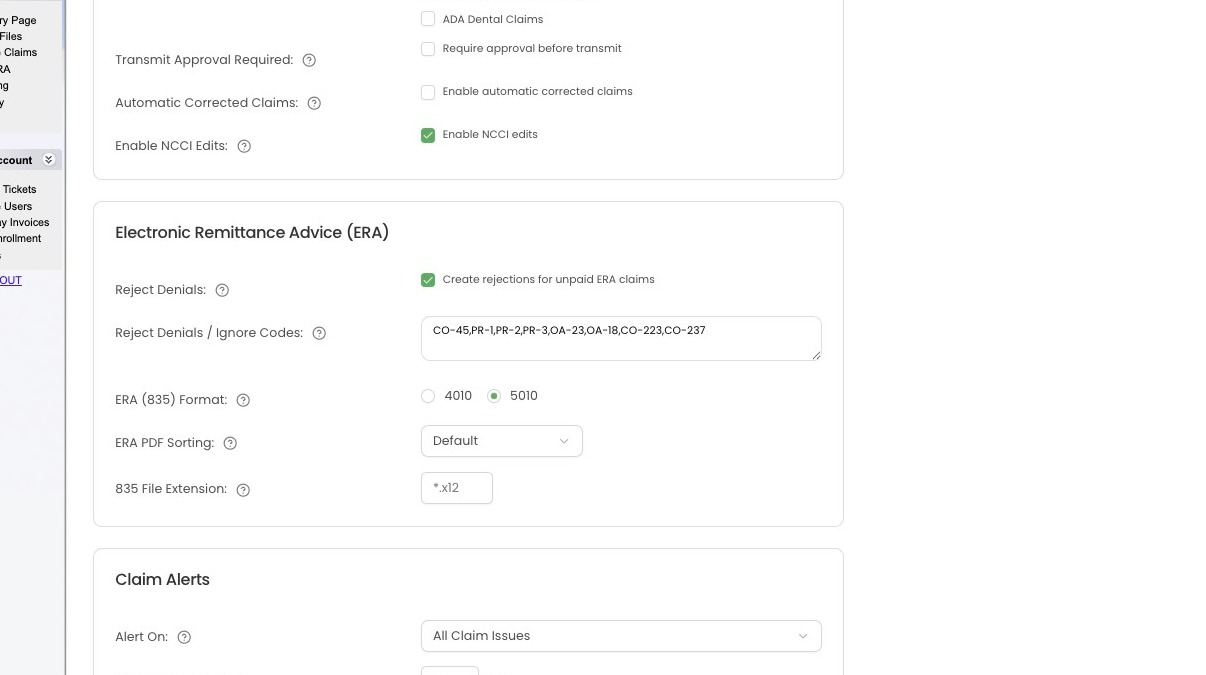
⚠️ Important
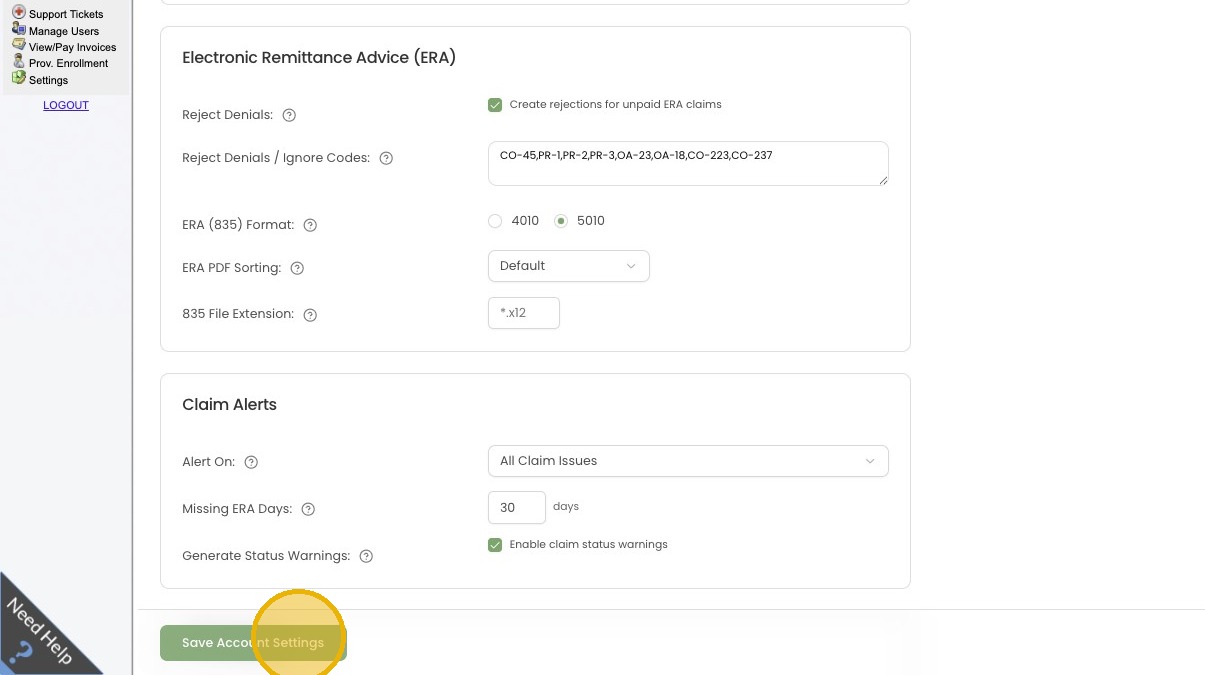
2. Click "Save Account Settings"
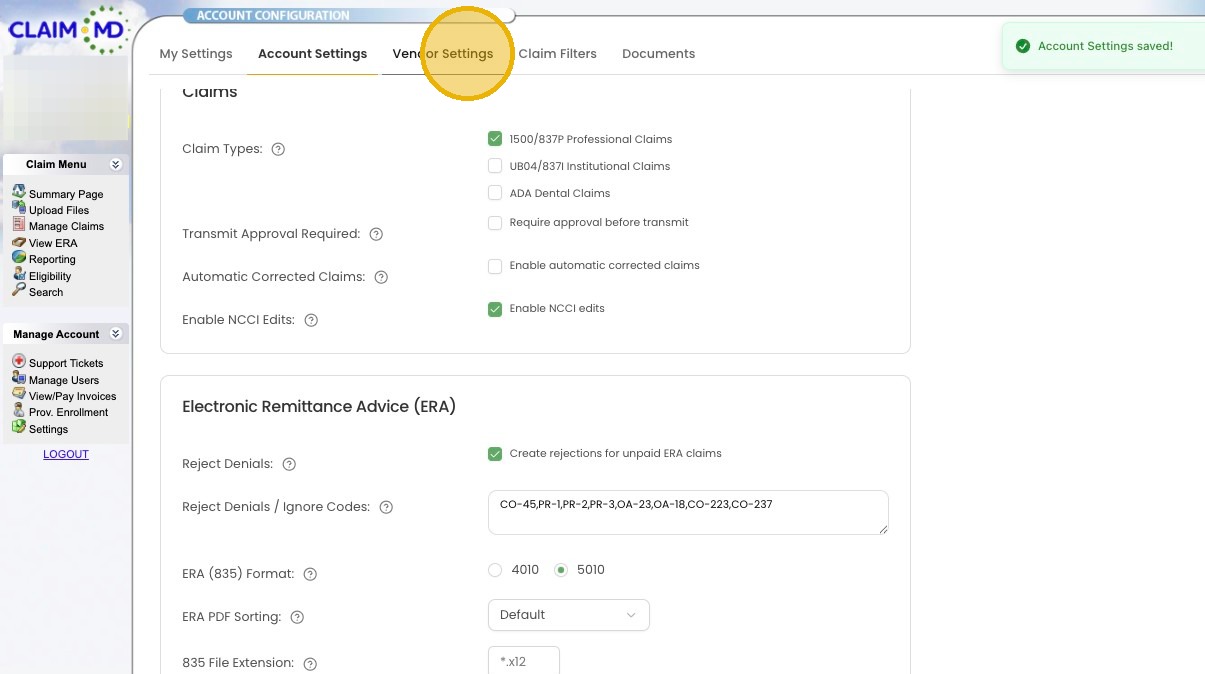
3. Click "Vendor Settings"
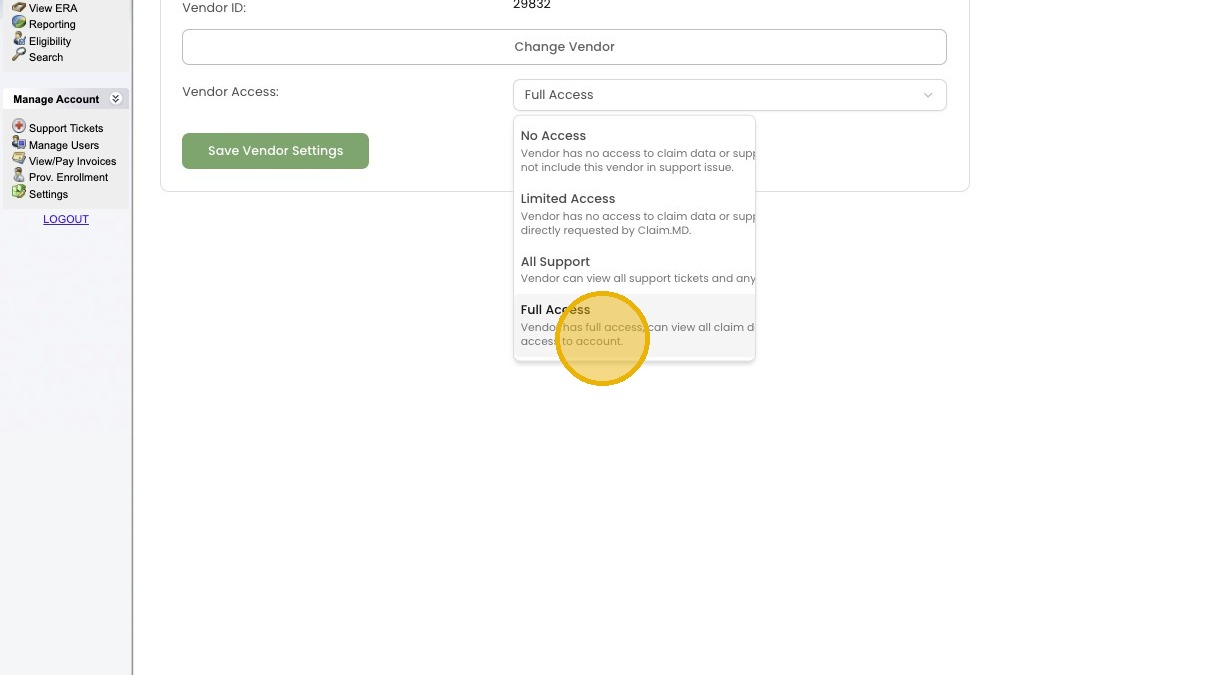
4. Click "Full Access"
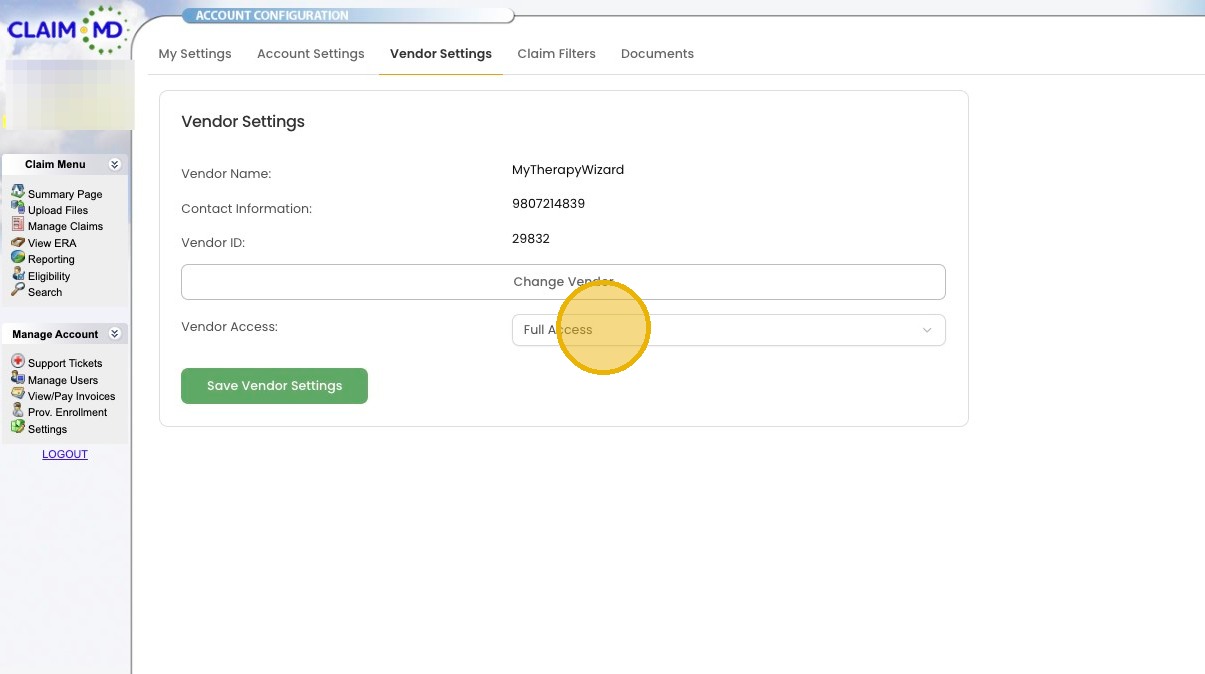
5. Click "Vendor has full access, can view all claim data, and has administrative access to account."
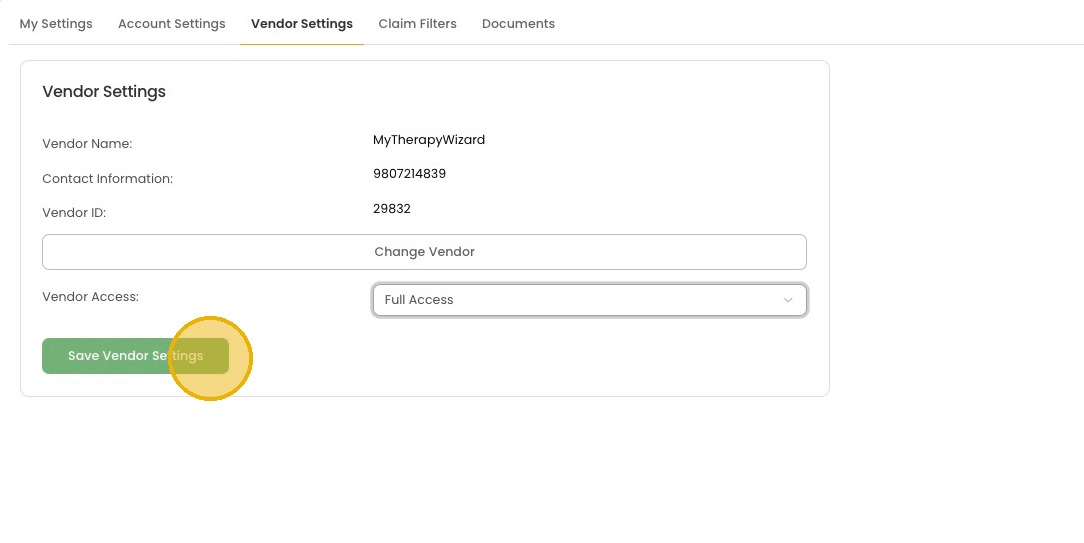
6. Click "Save Vendor Settings"
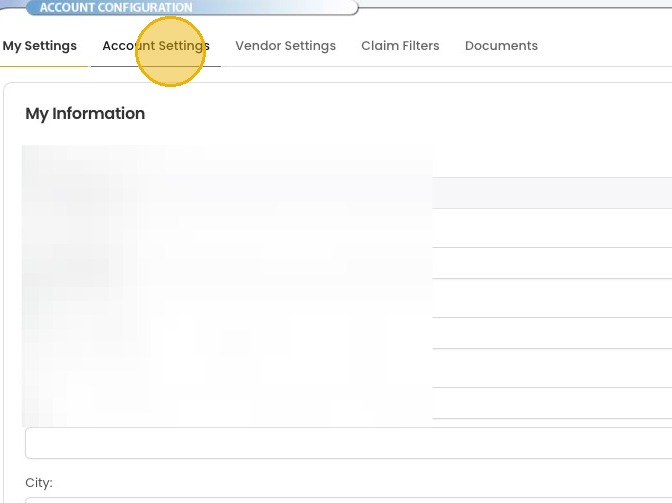
7. Click "Account Settings"
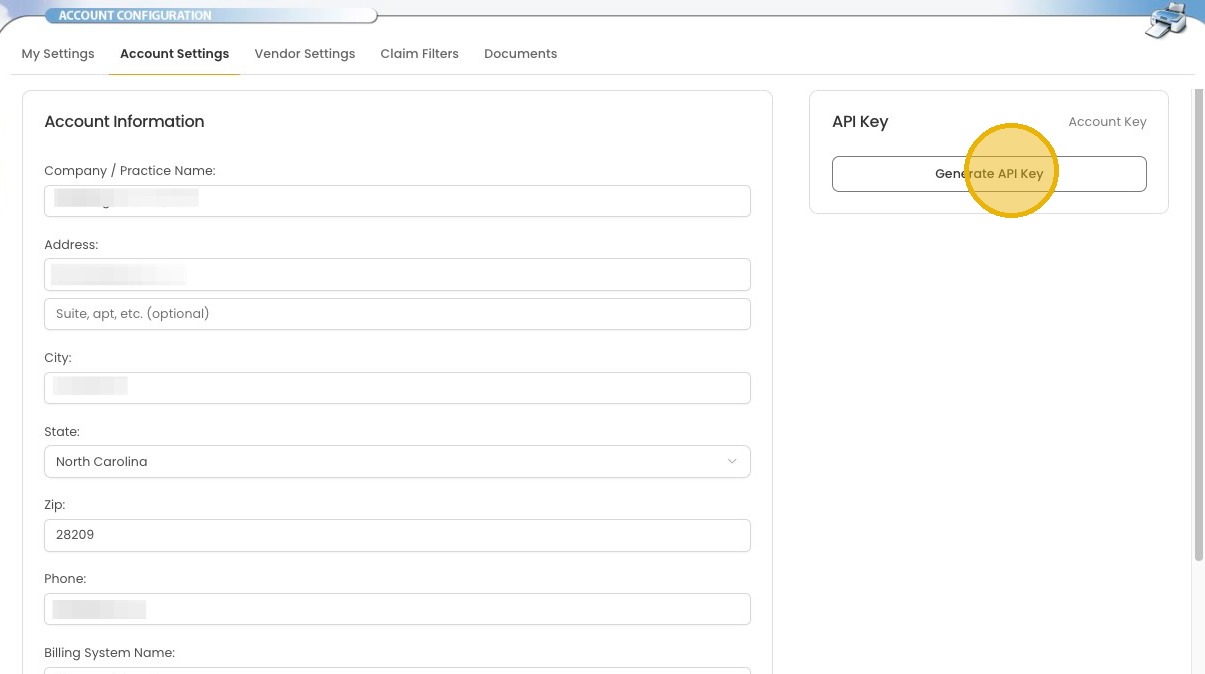
API Key Generation
8. Click "Generate API Key"
9. Click "Verify"
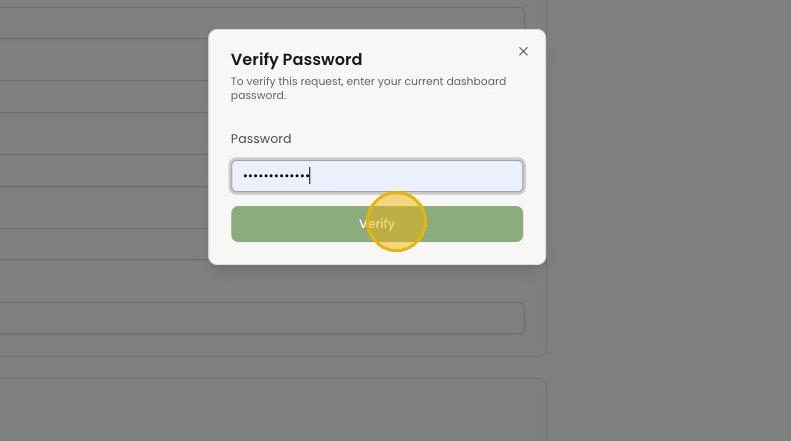
10. Click this button.
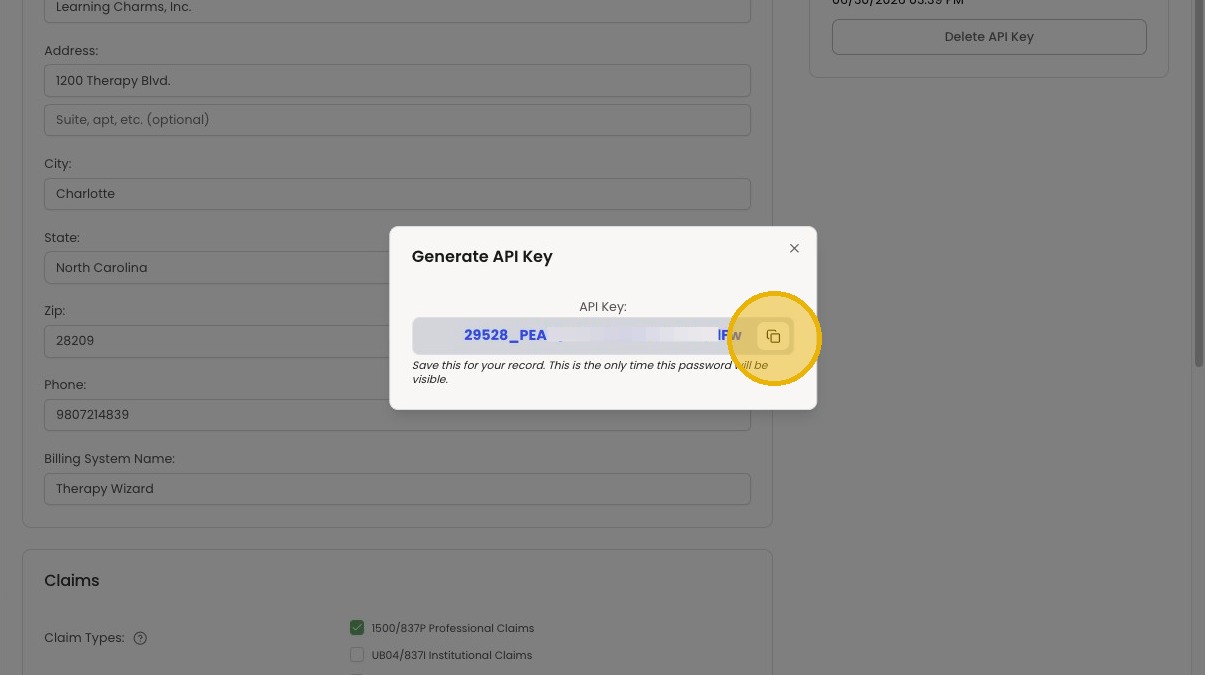
MyTherapyWizard Integration
11. Switch to tab MyTherapyWizard | Streamline Pediatric Evaluations Now"
12. Click "Organization"
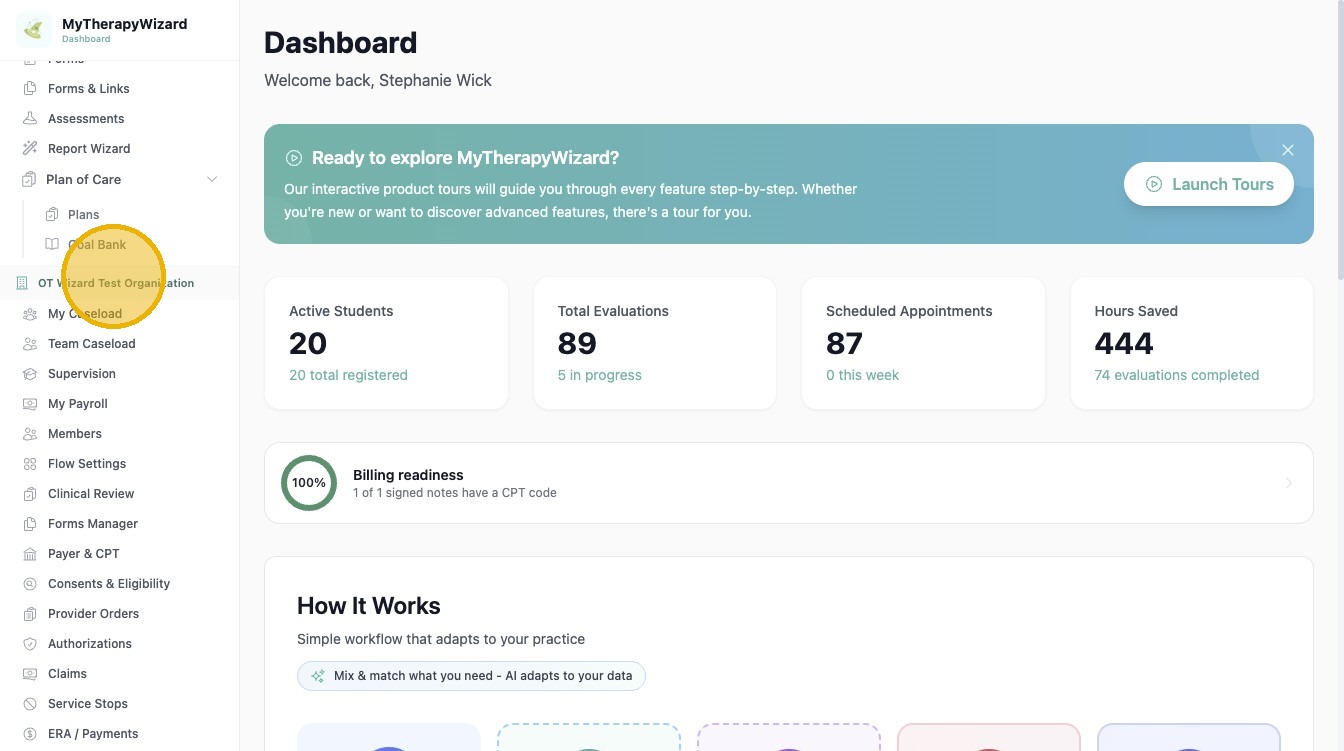
13. Select Settings from organization dashboard
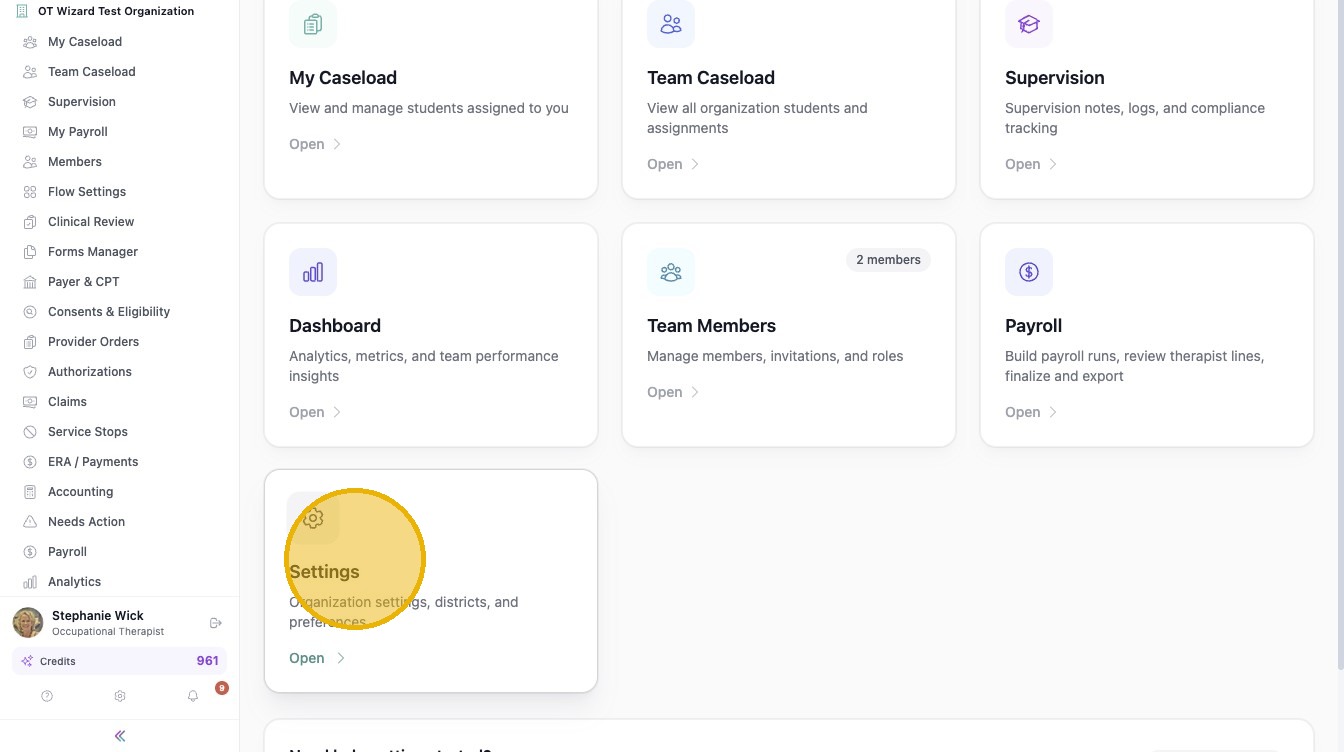
14. Click "Medical"
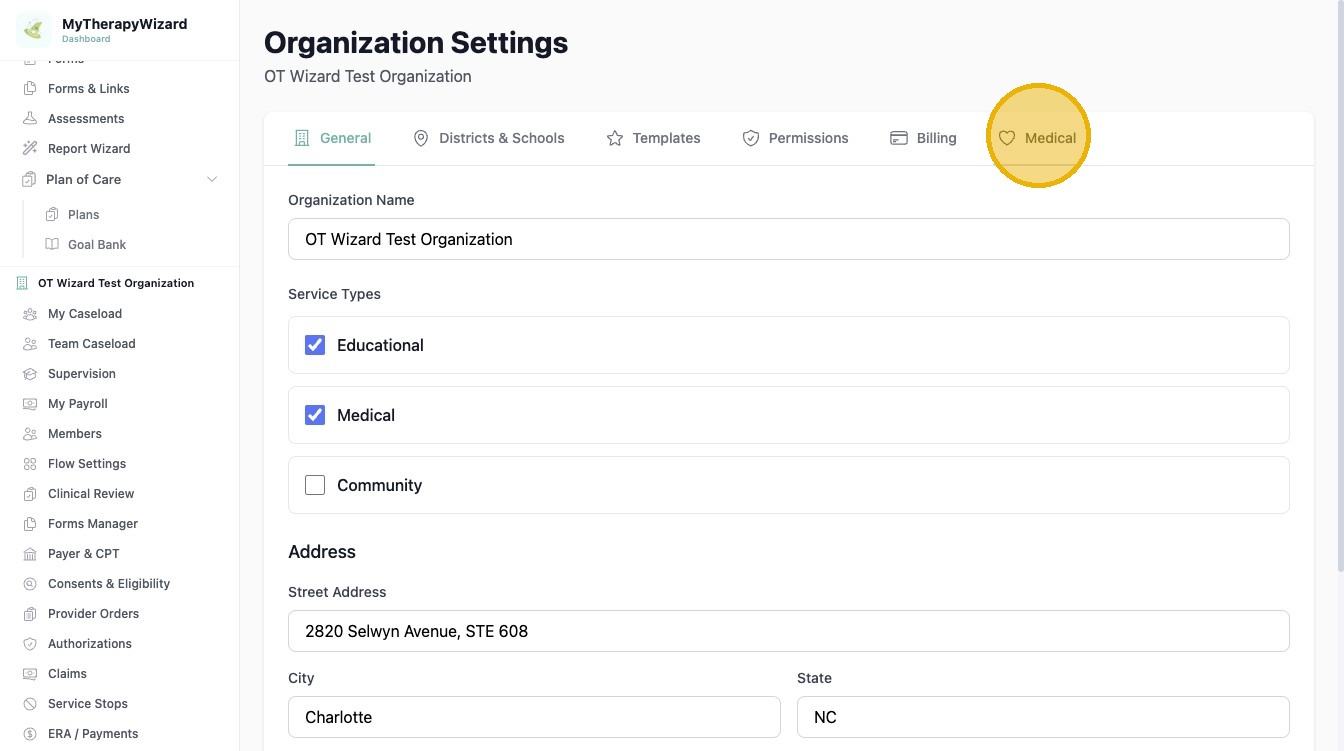
15. Paste AccountKey into field
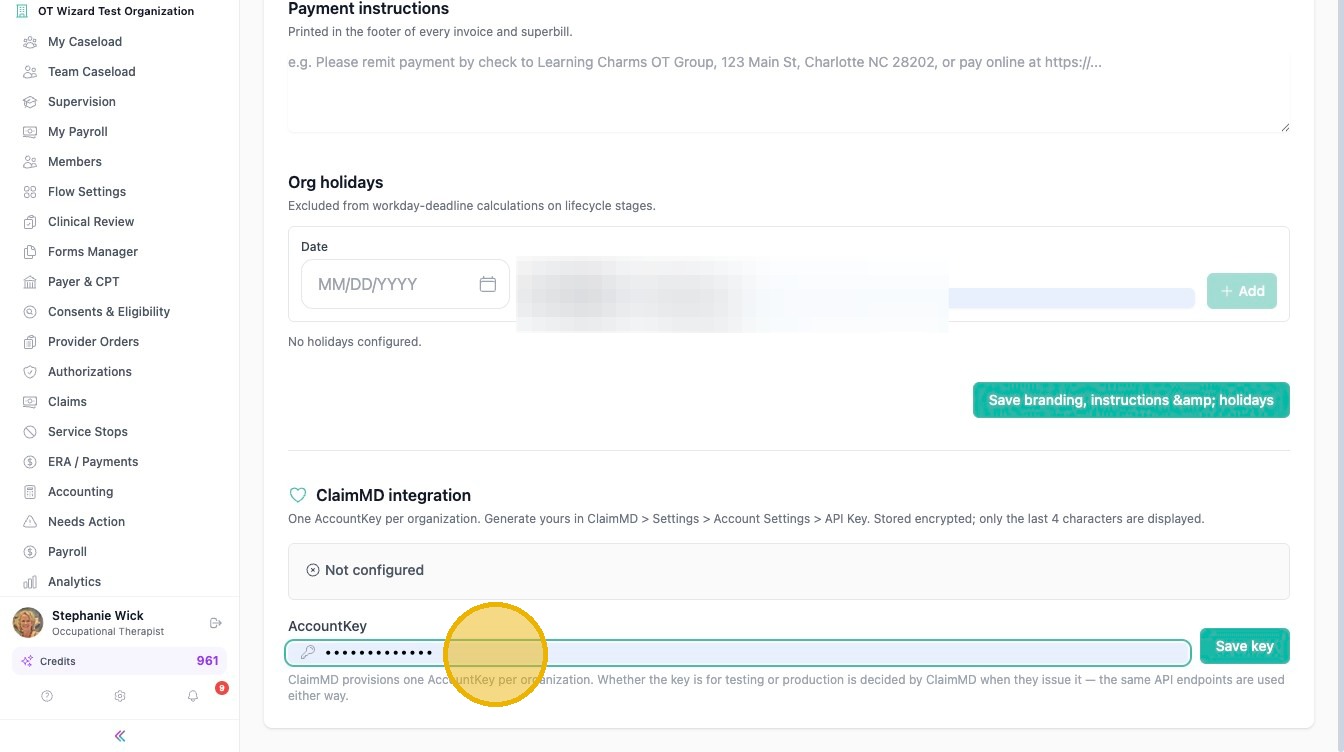
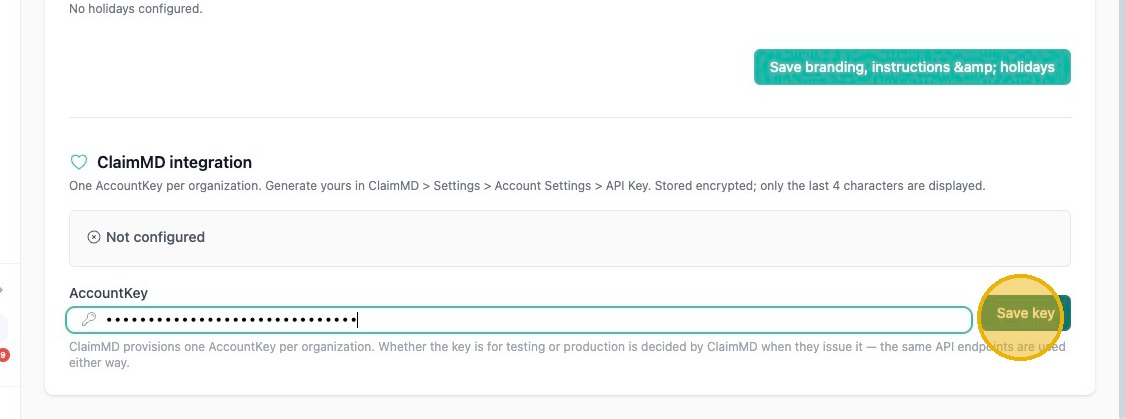
16. Click "Save key"
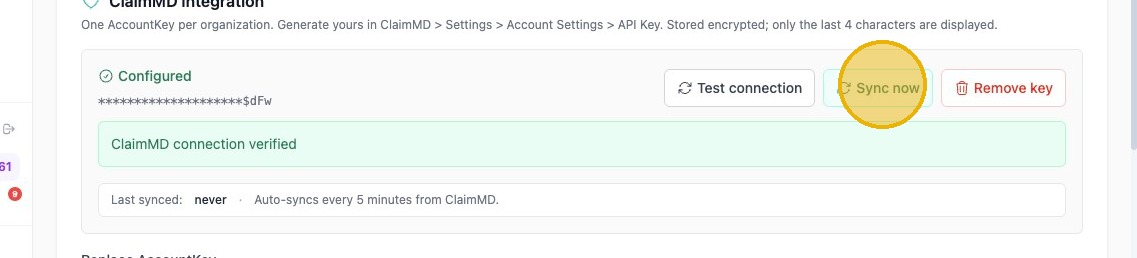
17. Click 'Test connection'
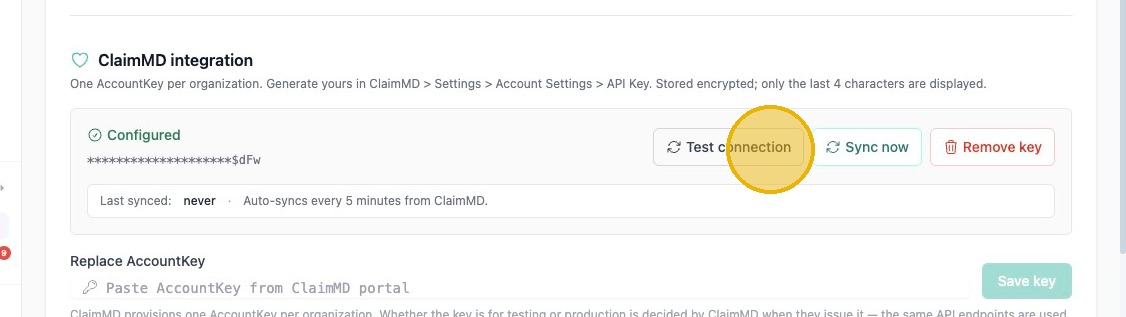
18. Click "Sync now"
See other articles in Billing Set Up here.