How to Schedule and Update Therapy Sessions
Learn how to efficiently manage your client therapy schedule and finalize session notes. This guide simplifies the process of adding activities, adjusting session details, and signing off on documentation to ensure your records are accurate and up to date.
New Session Creation
1. Navigate to https://app.mytherapywizard.com
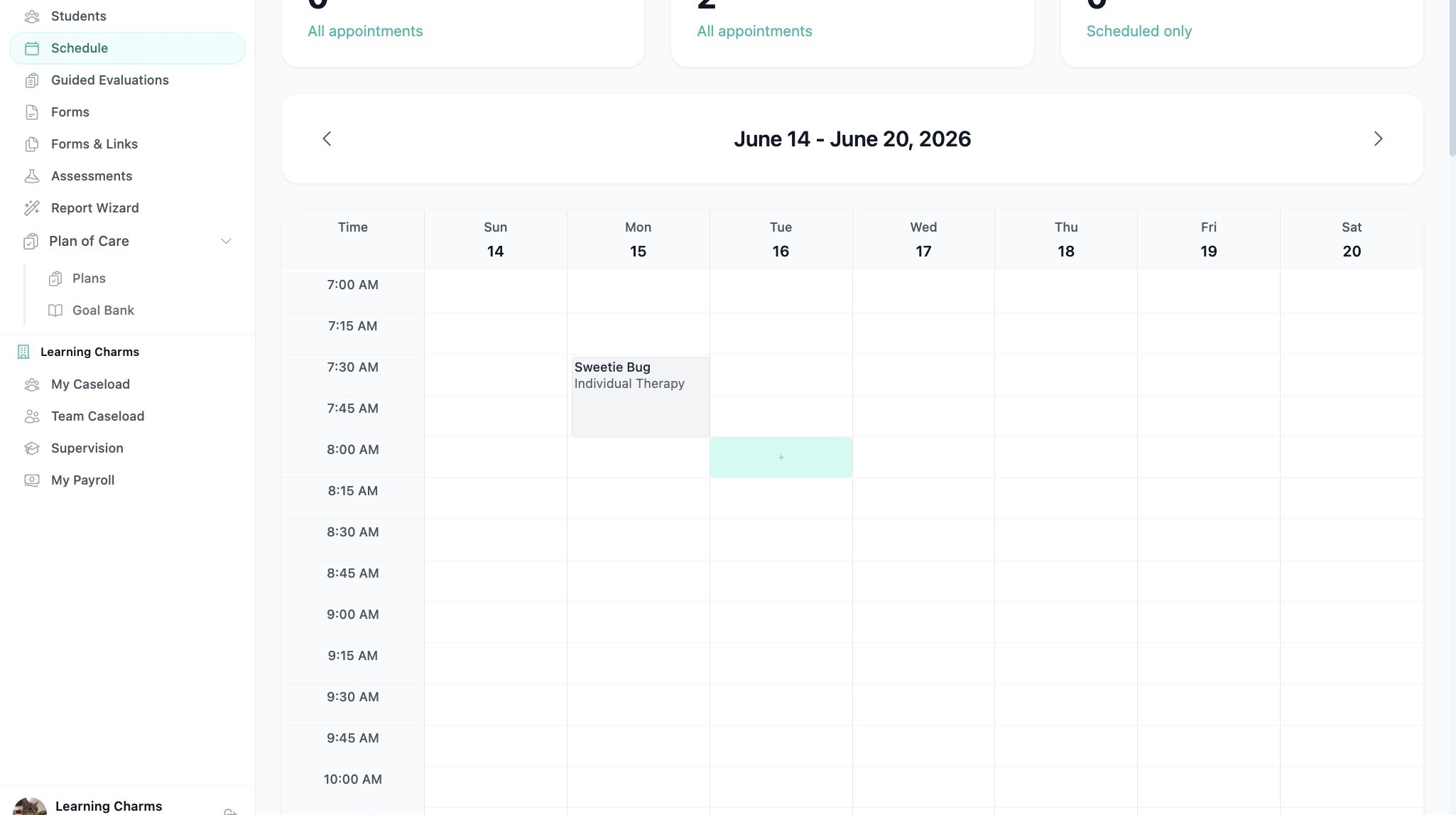
2. Click the '+' icon in a calendar slot to add a session.
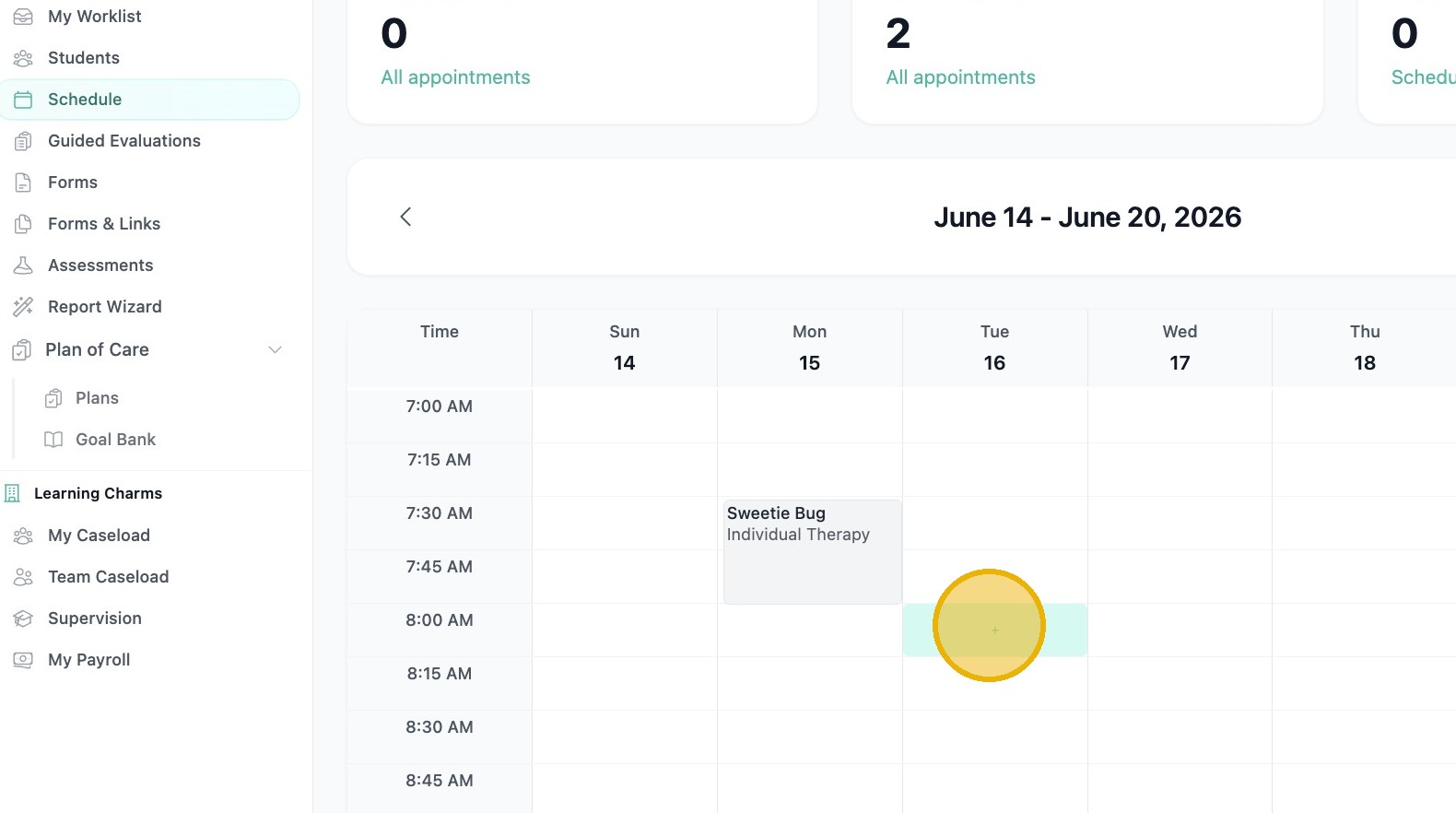
3. Click the 'Student/Client' dropdown.
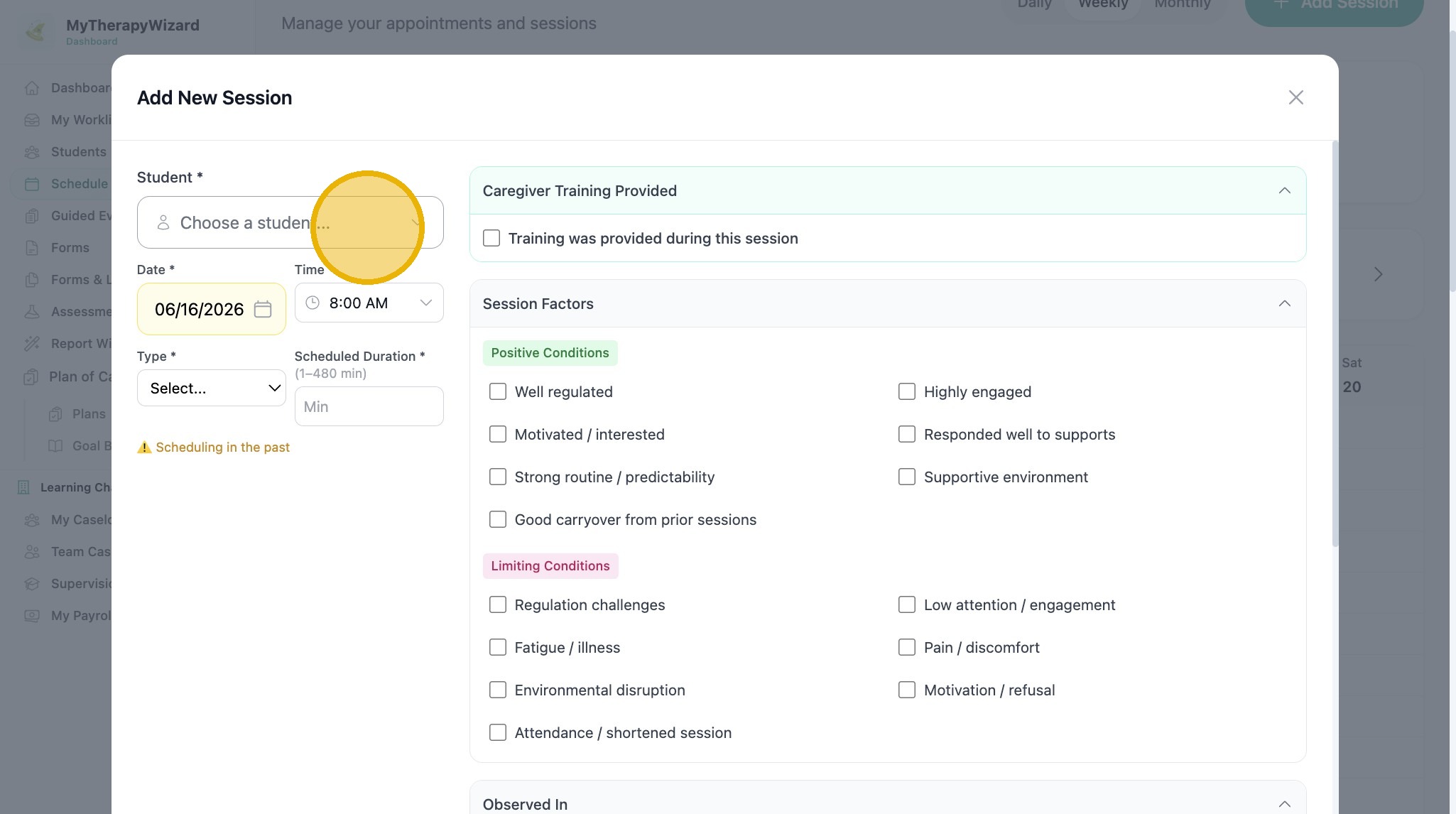
4. Select the client from list.
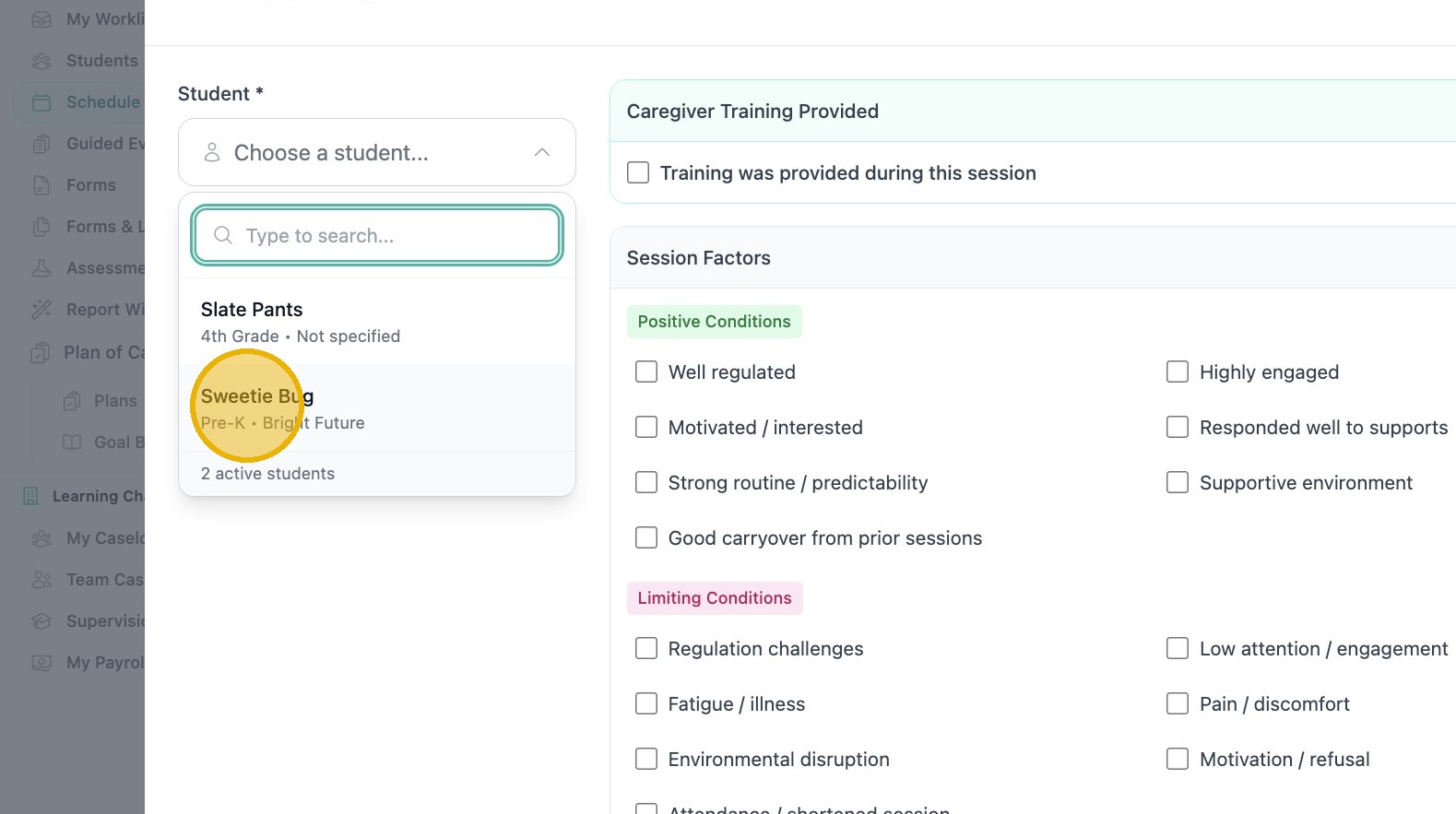
5. Select Session type from 'Type' dropdown.
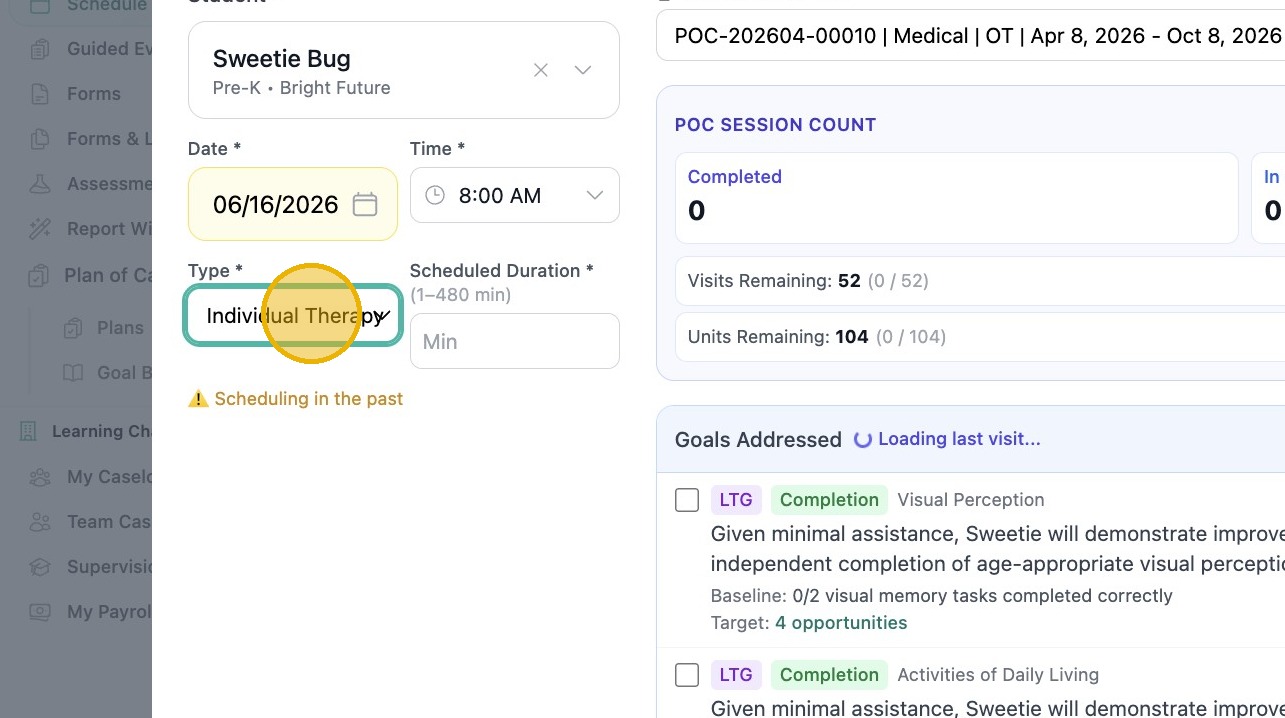
ℹ️ Note
6. Type scheduled time in 'Scheduled Duration' field.
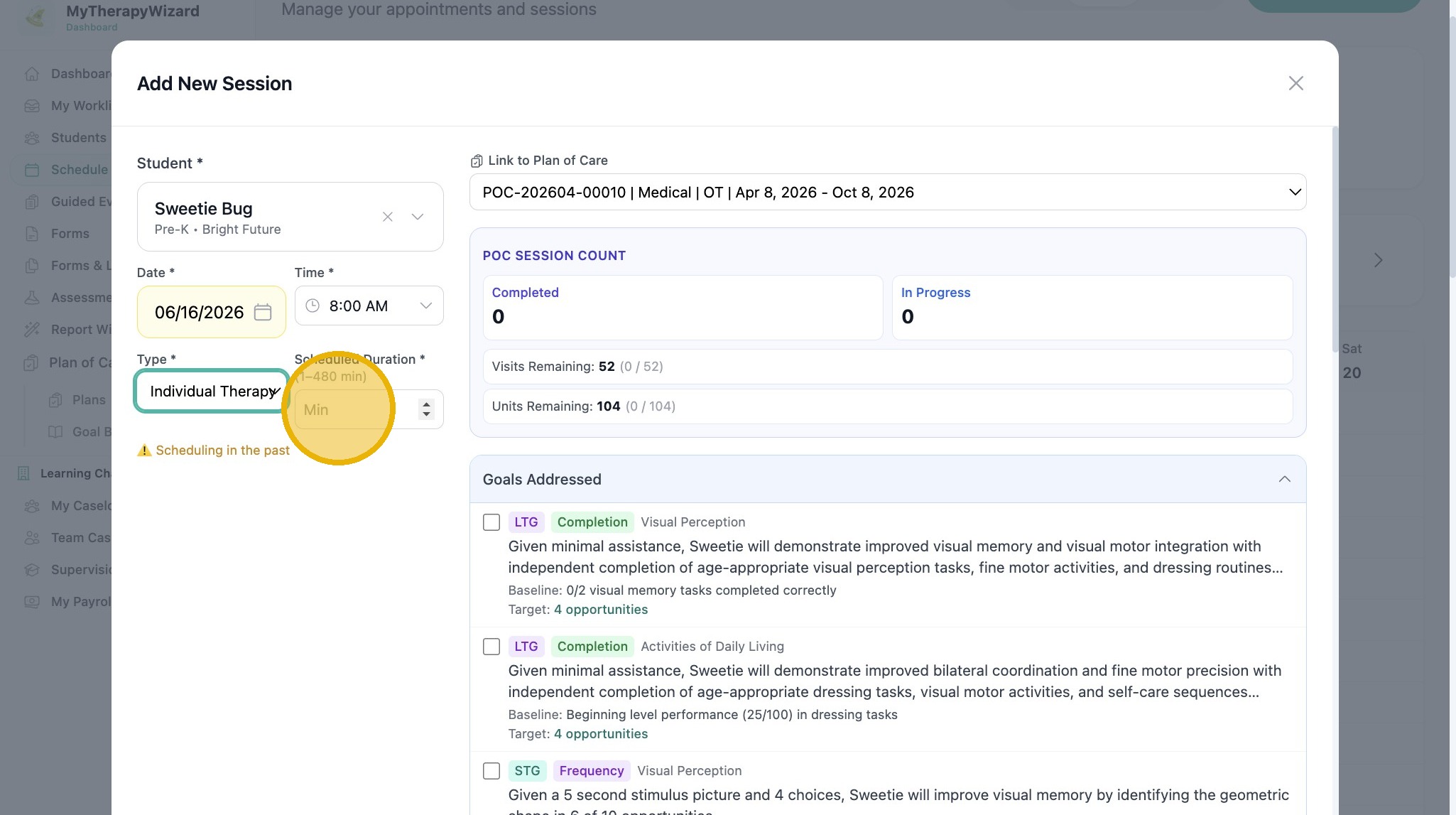
7. Click "Add Session"
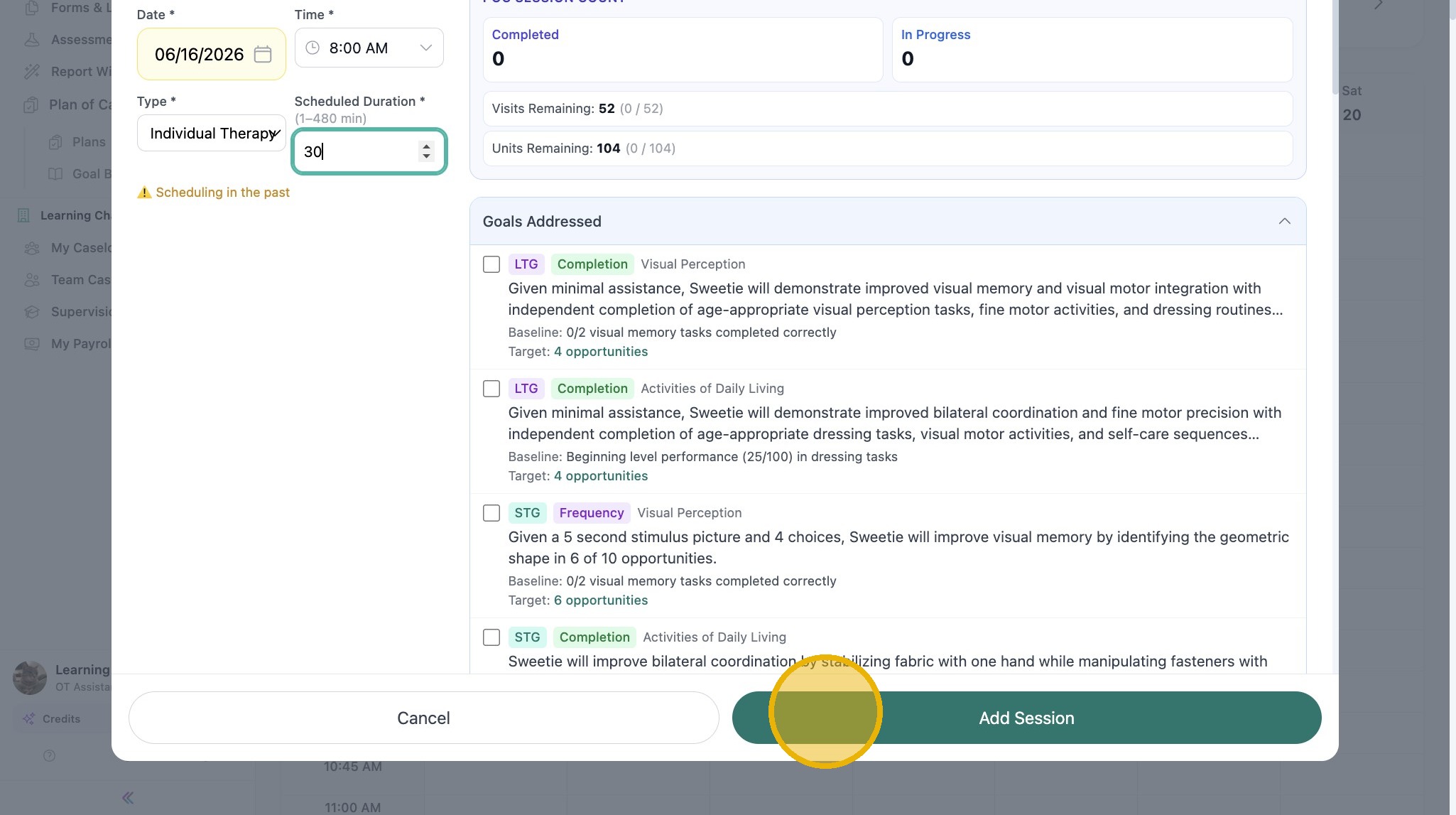
ℹ️ Note
To add session notes
8. Click scheduled session on calendar to open it.
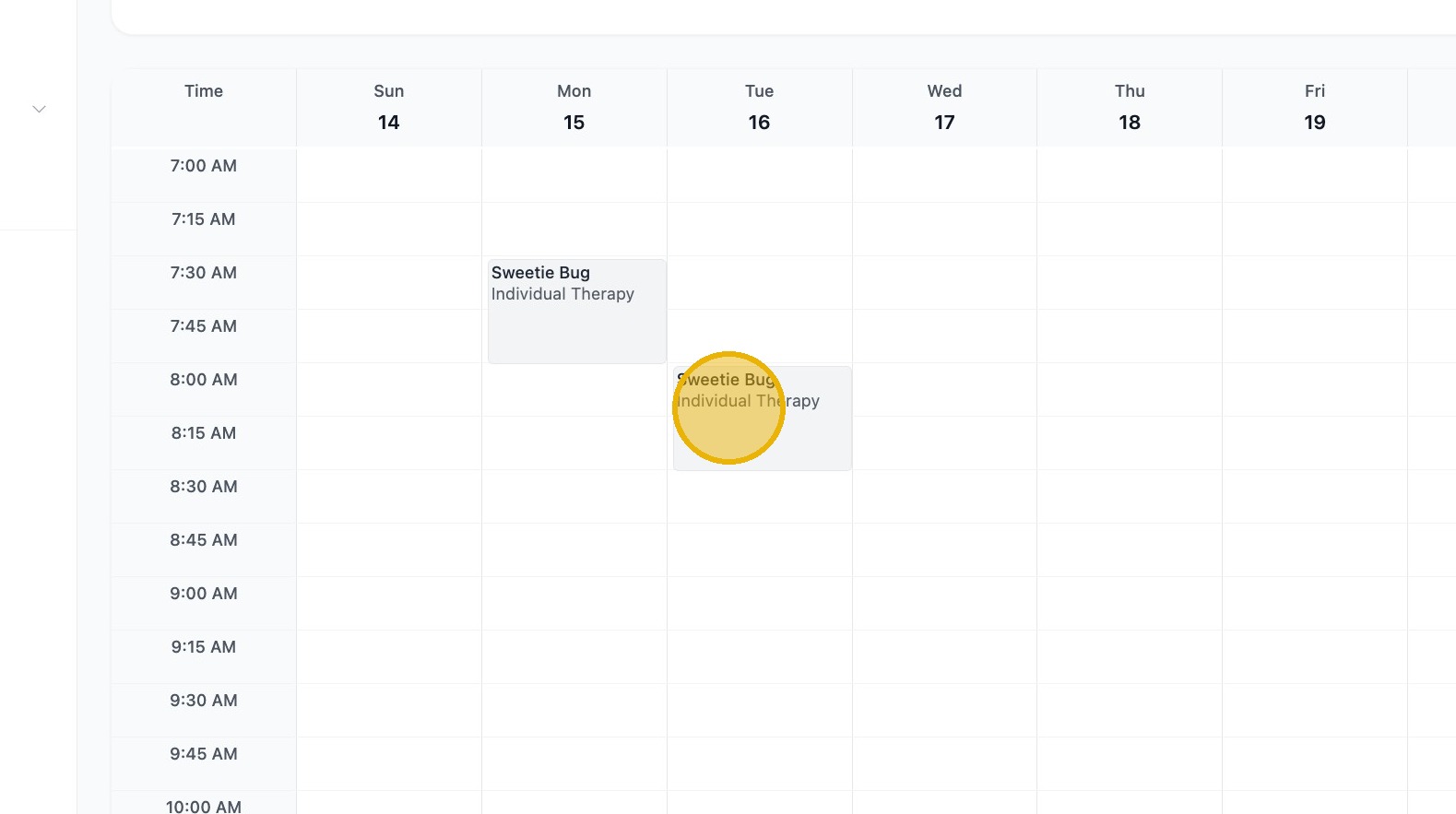
9. Click 'Procedure Code(s)' selection box.
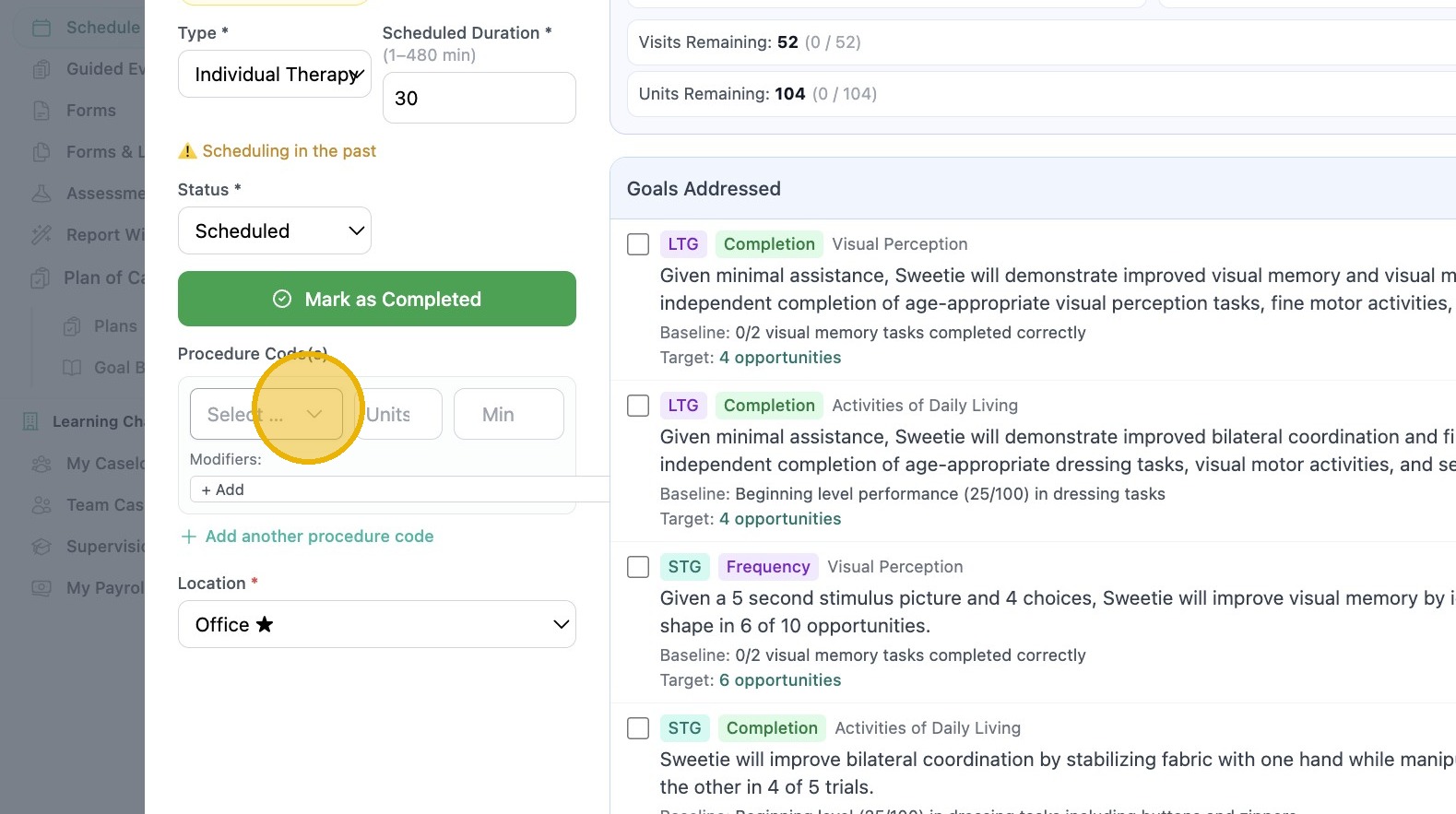
10. Select a procedure code from list.
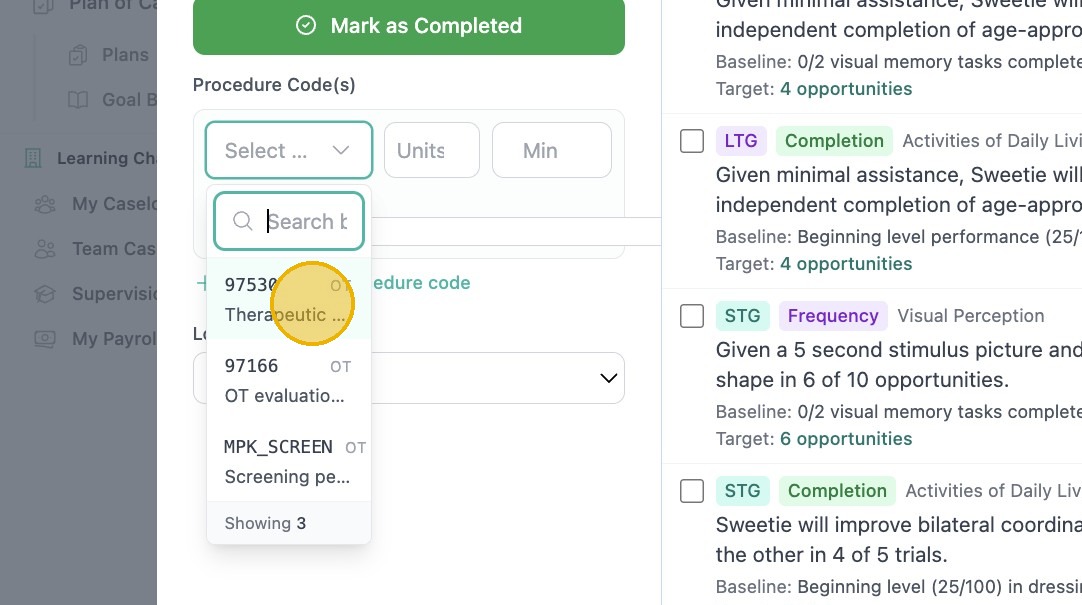
ℹ️ Note
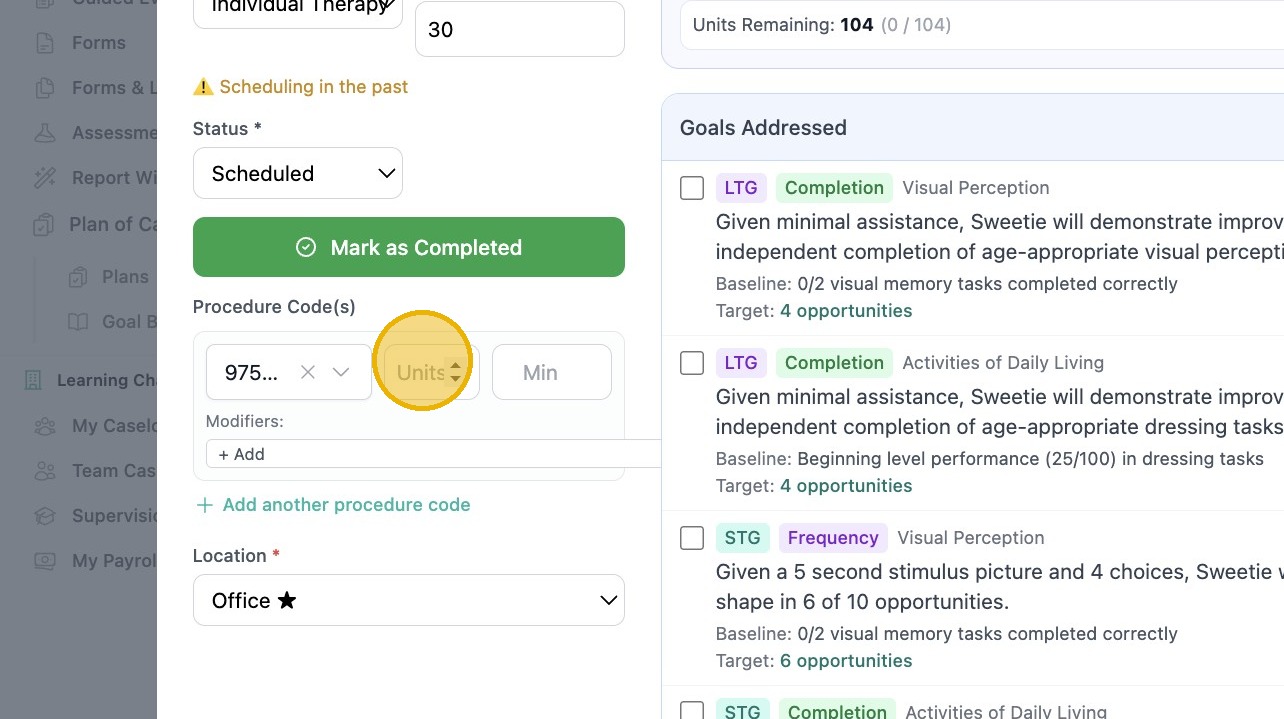
11. Add 'Units' seen (billed)
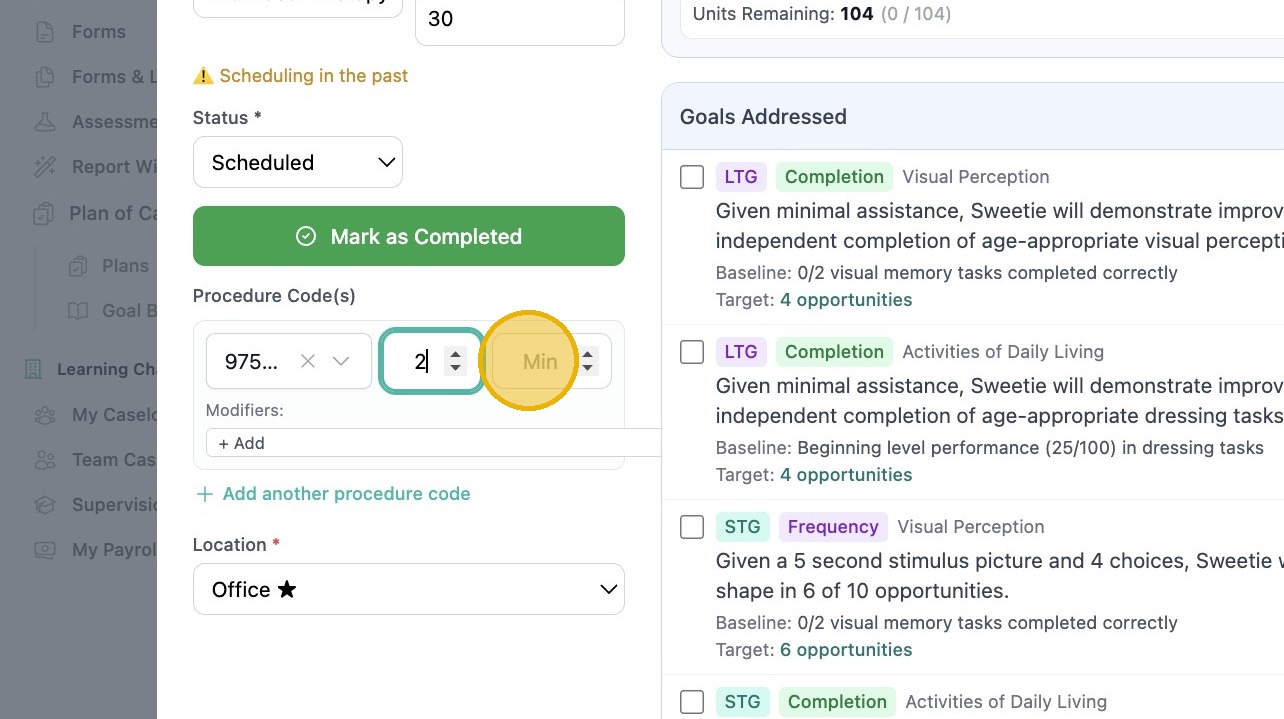
12. Add 'Minutes' seen (billed)
13. Add Modifier if needed. (Your admin will auto add modifiers to single procedure codes).
⚠️ Important
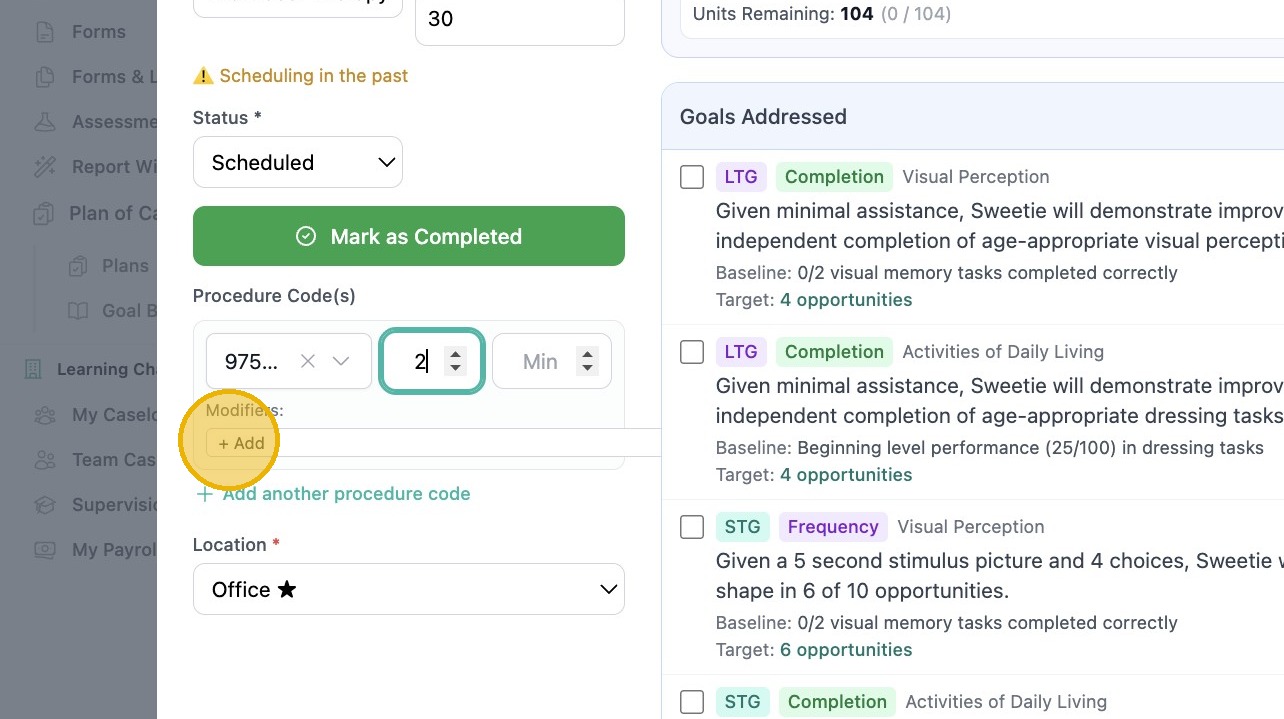
14. If you are billing for two or more procedure codes in one session, add here
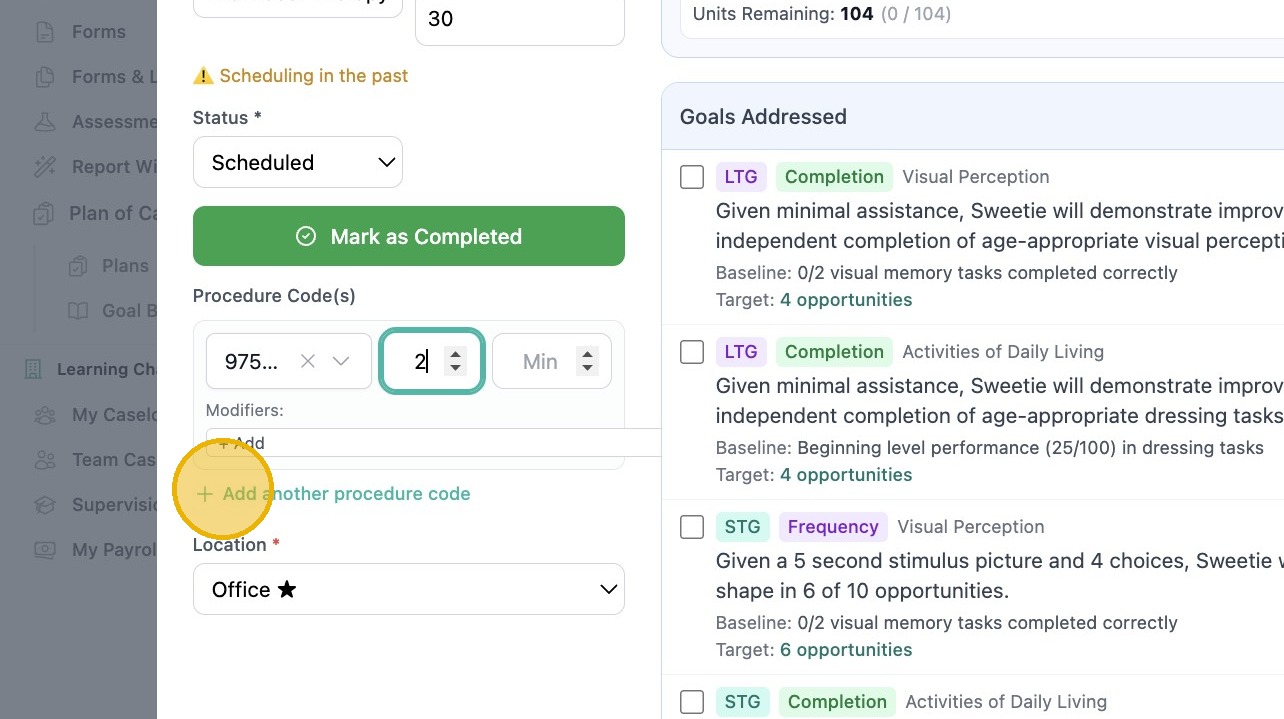
ℹ️ Note
15. If the POC is enabled, then the location will default to the place of service added in the POC.
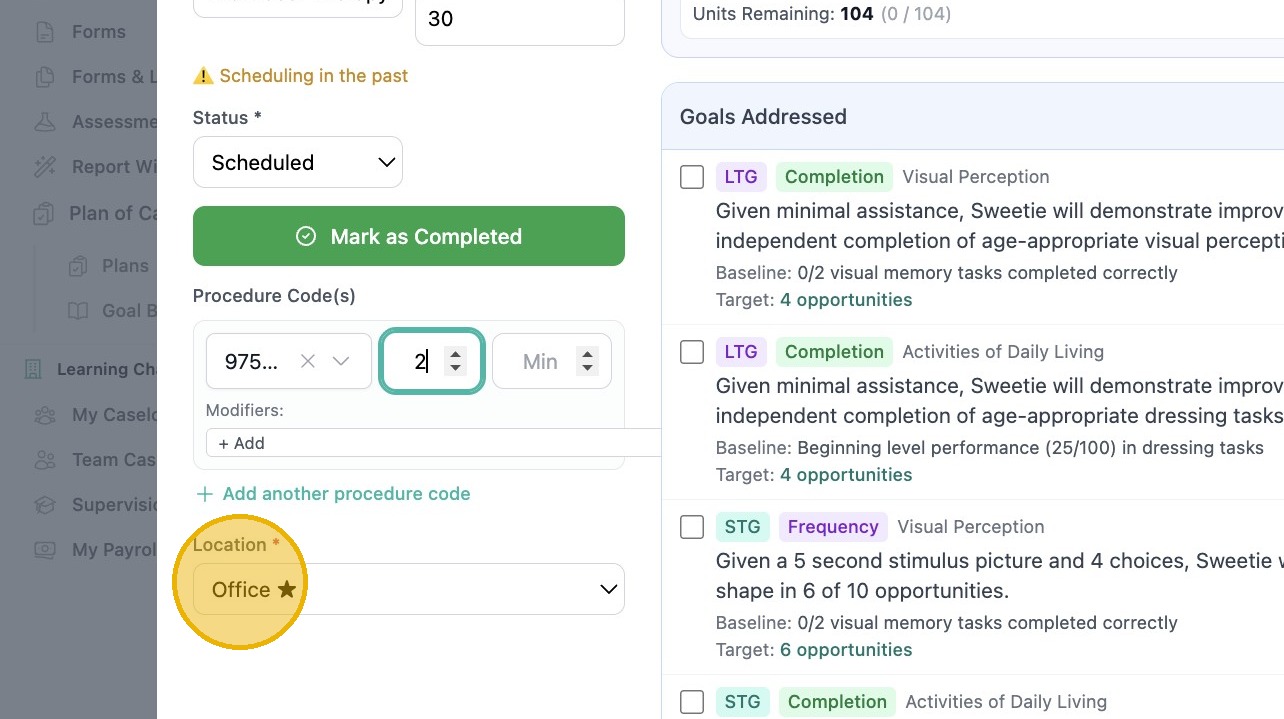
ℹ️ Note
ℹ️ Note
16. Complete your note checklists and session notes as normal. Update session.
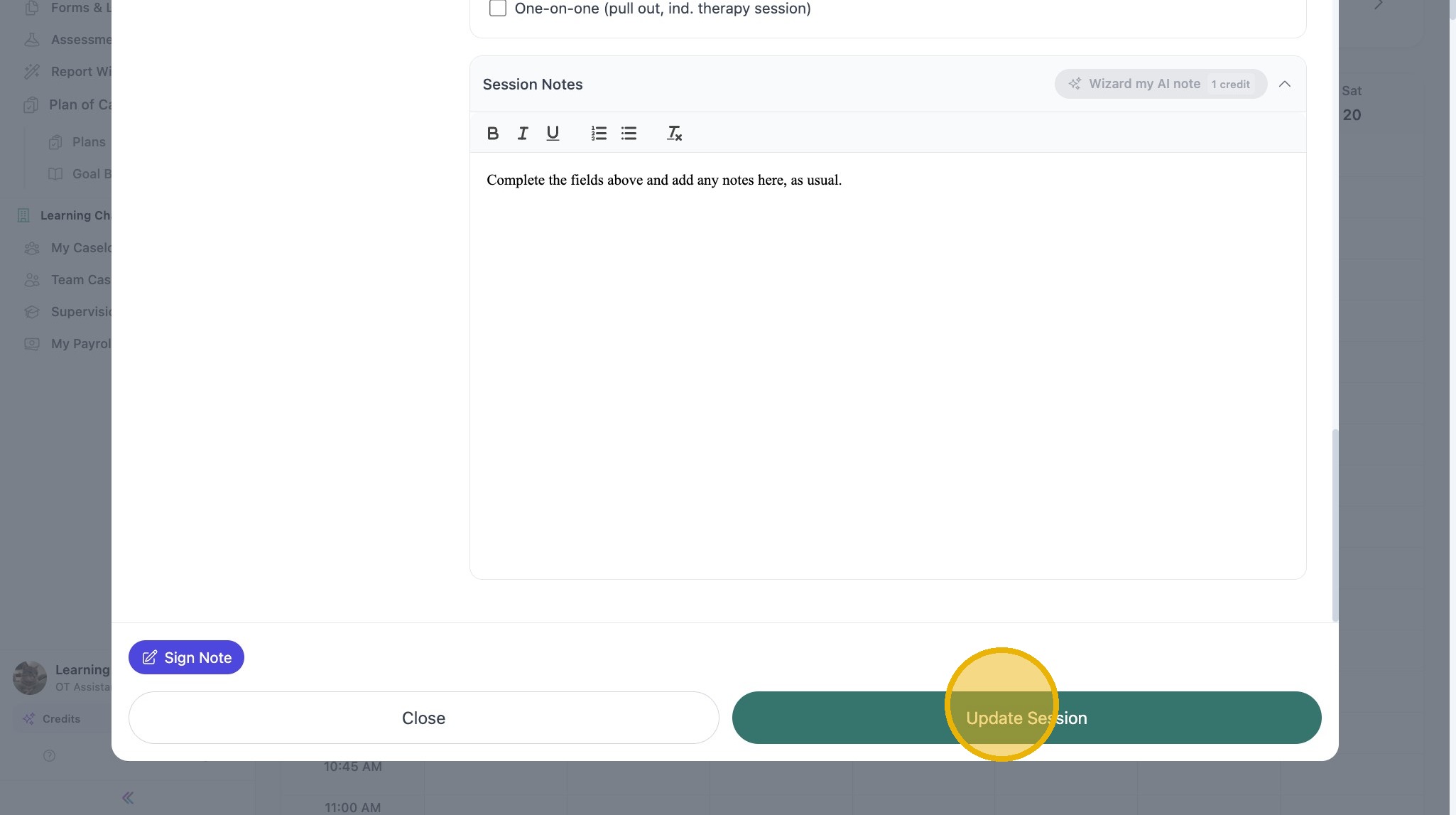
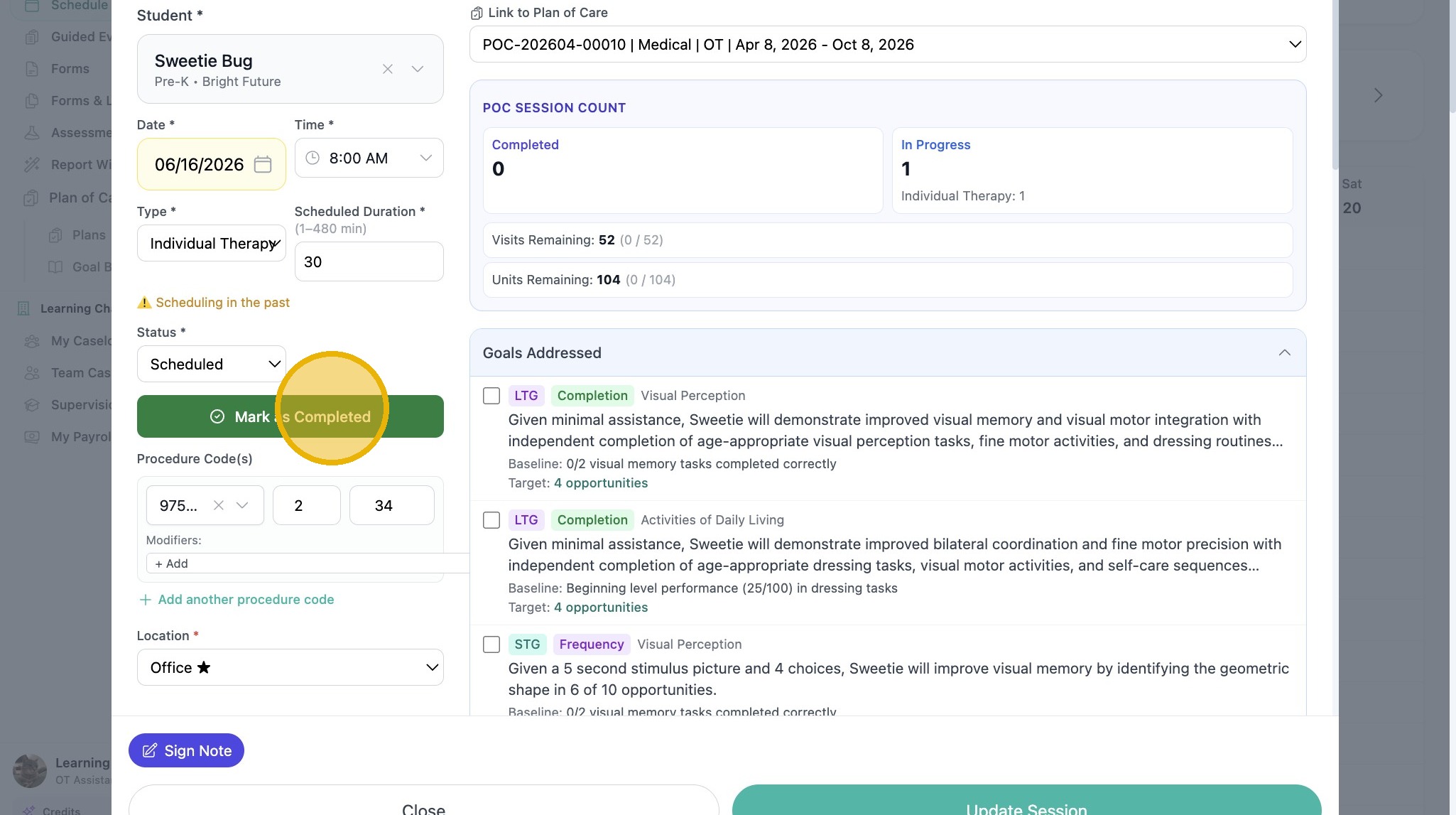
17. Mark as Completed when done.
ℹ️ Note
Session Finalization
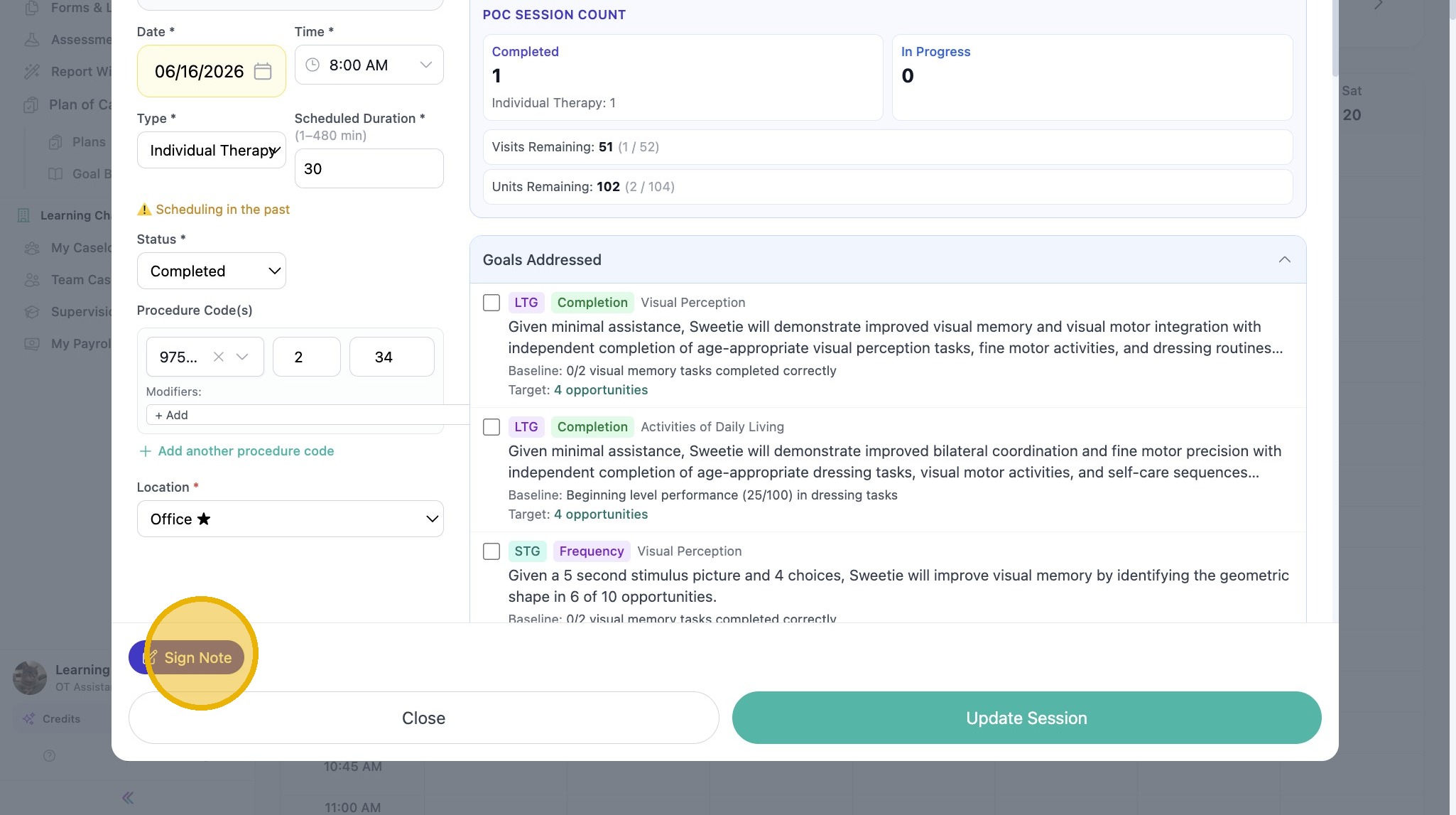
18. Click 'Sign Note' to finalize session.
See other articles in Scheduling here.